
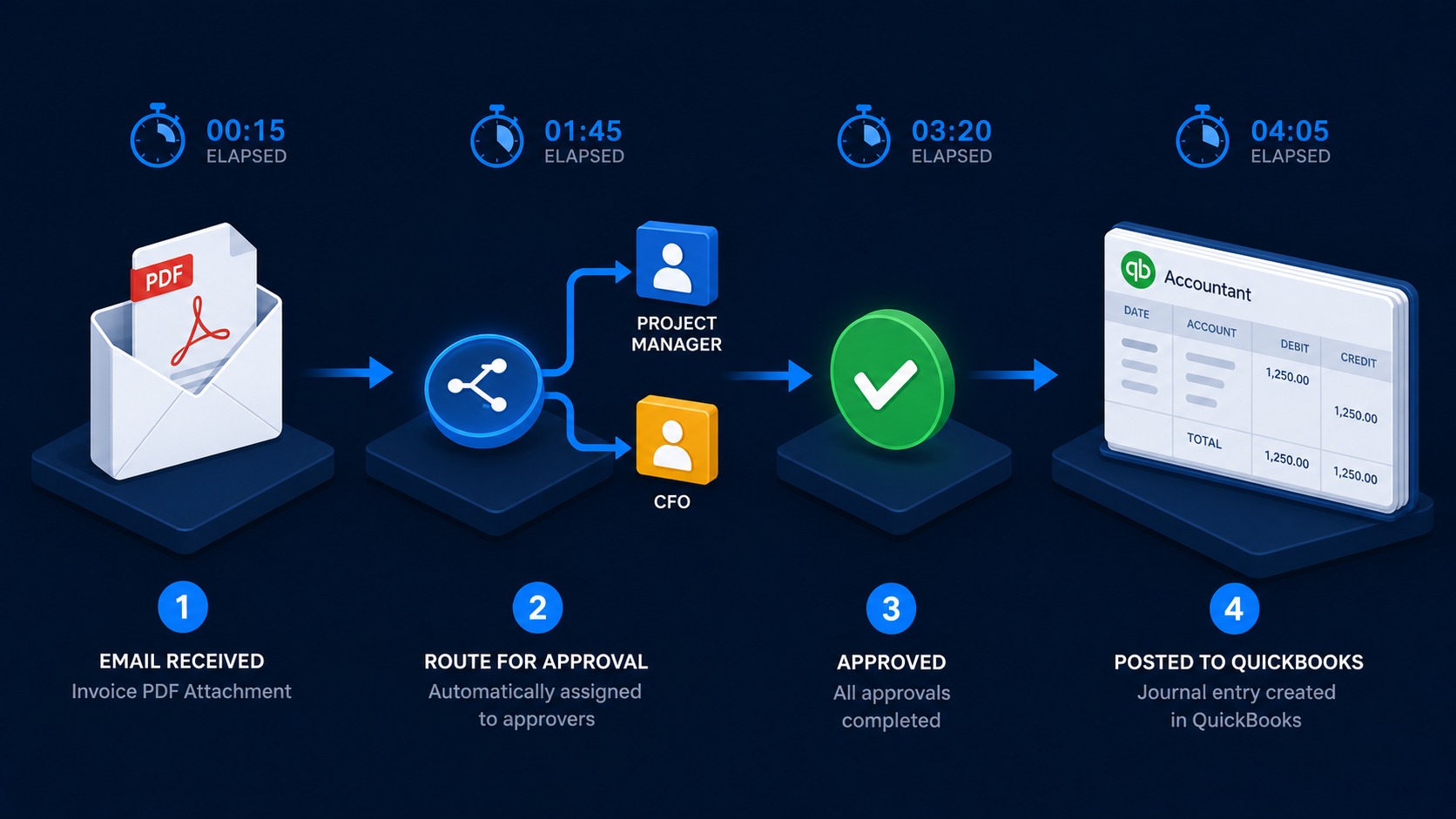
Quick scan before the full breakdown.
Goal
Automate the path from incoming supplier email to approved QuickBooks bill across three company entities.
Stack
n8n, Claude API, Gotenberg, QuickBooks Online, Gmail, Slack, Google Drive
Result
91% of invoices routed and approved without manual data entry, with zero duplicate payments in 10 weeks.
Time saved
Saved the finance manager approximately 12-15 hours per month.
A complete accounts payable automation for a Canadian real estate company: supplier invoices arrive by email, get extracted and routed to the correct approver based on amount and project, and land in QuickBooks Online as a verified bill — with reminders, escalation logic, and a full audit trail, entirely without manual re-entry.
A mid-sized Canadian real estate operation managed three companies under one umbrella, each with its own QuickBooks Online account. Supplier invoices arrived by email — contractors, property managers, utilities, maintenance vendors — at a rate of roughly 150 per month across the three entities.
The process had five manual steps. Someone received the email, downloaded the attachment, typed the invoice details into a tracking spreadsheet, forwarded it to the relevant project manager for approval, and waited. Once approval came back (by reply email), someone else entered the invoice into QuickBooks and filed the PDF. Twice a month, a payment schedule was prepared manually from the spreadsheet.
Two things broke regularly: approvers forgot to reply, so invoices sat in limbo for weeks. And data entry errors between the spreadsheet and QuickBooks caused duplicate payments and incorrect expense coding.
The brief: automate everything between “email arrives” and “approved bill in QuickBooks.”
Four n8n workflows connected by internal webhooks.
Workflow 1 — Ingestion and Extraction
Triggered by a Gmail label. A filter rule on the shared AP inbox labels any email with a PDF or image attachment as invoice-inbox. n8n polls this label every 5 minutes.
For each new email:
project_code (from the invoice body if present) and entity (best guess at which of the three companies this invoice belongs to, based on the recipient email address)#ap-review channel for human verification before routingWorkflow 2 — Approval Routing
Determines who needs to approve the invoice and sends the request.
Routing rules (configured in a Google Sheet, editable by the finance manager without touching n8n):
| Amount | Approver |
|---|---|
| Under $500 | Auto-approved, goes straight to Workflow 4 |
| $500–$5,000 | Project manager for the relevant property |
| Over $5,000 | Project manager + CFO (both must approve) |
| Any contractor invoice | Project manager regardless of amount |
The approval request is sent as a Slack message to the approver with:
If no response within 48 hours, the workflow sends a reminder. If no response after 72 hours, it escalates to the CFO and posts in #ap-review.
Workflow 3 — Rejection Handling
If the approver clicks Reject:
rejected folder in Google DriveWorkflow 4 — QuickBooks Entry
Triggered when an approval is confirmed (either auto-approved or button click from Workflow 2).
Steps:
/v3/company/{realmId}/bill with:
VendorRef (QBO vendor ID)TxnDate (invoice date from extraction)DueDate (calculated from invoice payment terms, defaulting to 30 days)Line array with amount, account code, and descriptionDocNumber (invoice number)/v3/company/{realmId}/upload endpoint#ap-review: “Invoice [number] from [vendor] — $[amount] — added to QuickBooks ✓“QuickBooks Online uses OAuth2 with a 1-hour access token and a 100-day refresh token. Three separate QBO companies meant three separate OAuth2 connections in n8n, each with its own realmId.
The workflow determines which company to use from the entity field extracted in Workflow 1 (mapped to a QBO credential name via a lookup). This part required careful testing — routing an invoice to the wrong QBO company is exactly the kind of error this system was meant to eliminate.
To handle token expiry, the same reminder approach as my other projects: a daily check on token expiry dates, Slack alert 14 days before.
Every invoice gets a row in a Google Sheet with:
This sheet is the finance manager’s source of truth. It also feeds the twice-monthly payment schedule — a separate n8n workflow filters for bills due within the next 15 days and generates a formatted summary email to the banking team.
After 10 weeks across all three companies (approx. 150 invoices/month):
The twice-monthly payment schedule is now generated automatically and reviewed, not built from scratch.
The approval Slack buttons have a 3-second delay before the workflow responds — Slack shows a “loading” spinner during this time. For the multi-approval path (project manager + CFO), I’d move to a lightweight internal web form instead of Slack buttons, which would allow both approvers to see each other’s status in real time.
The entity detection from the recipient email works but would break if the client ever changes their email routing. A more robust approach is a sender domain lookup — mapping vendor email domains to the correct company entity.
Running a multi-entity accounts payable process that still relies on email chains and manual QuickBooks entry? Get in touch.
Three nearby case studies worth reading next.
May 1, 2026
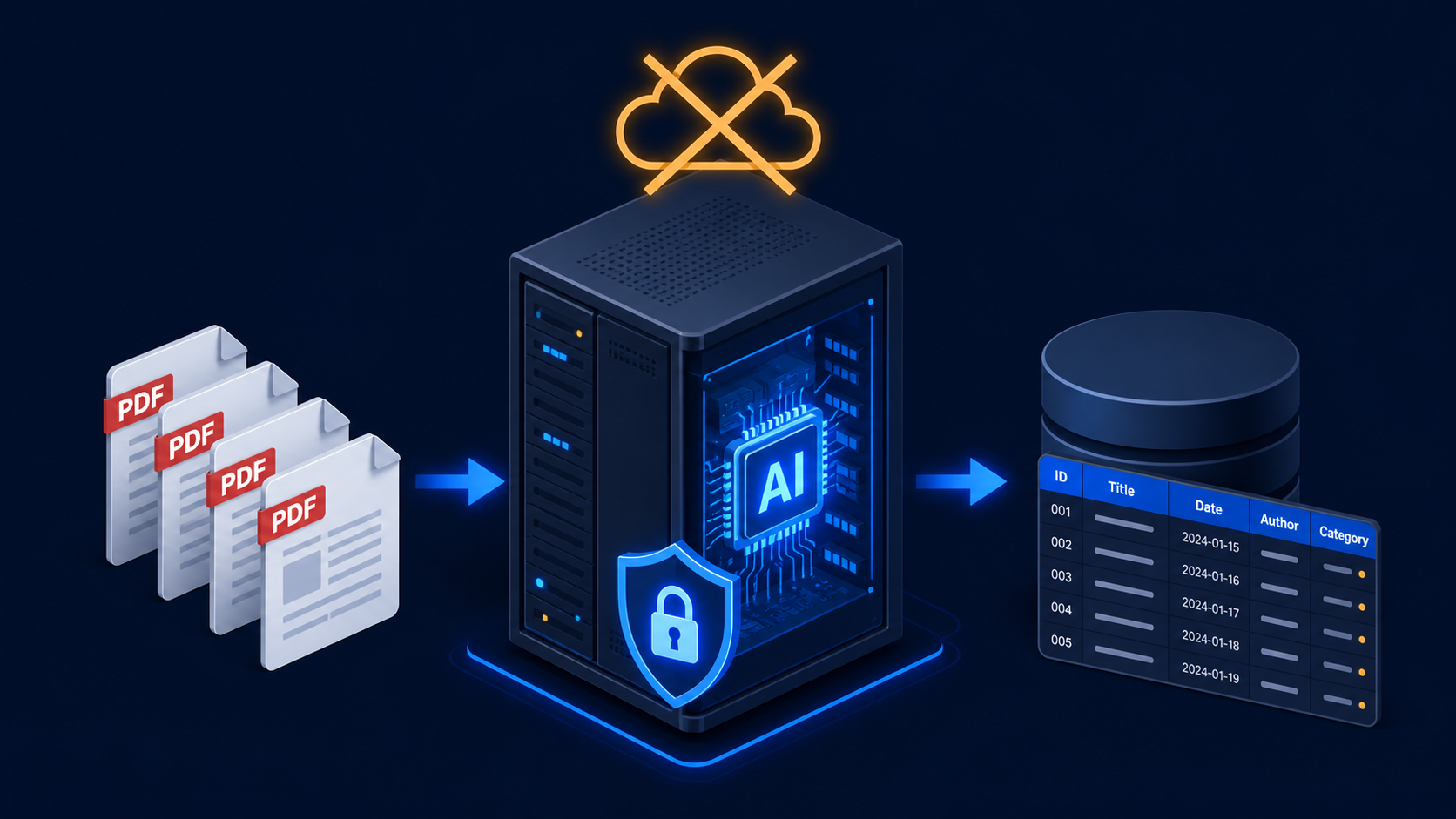
A fully local invoice processing pipeline using n8n, Ollama, LLaMA Vision, and on-premise OCR so supplier data never leaves the client's server.
May 1, 2026
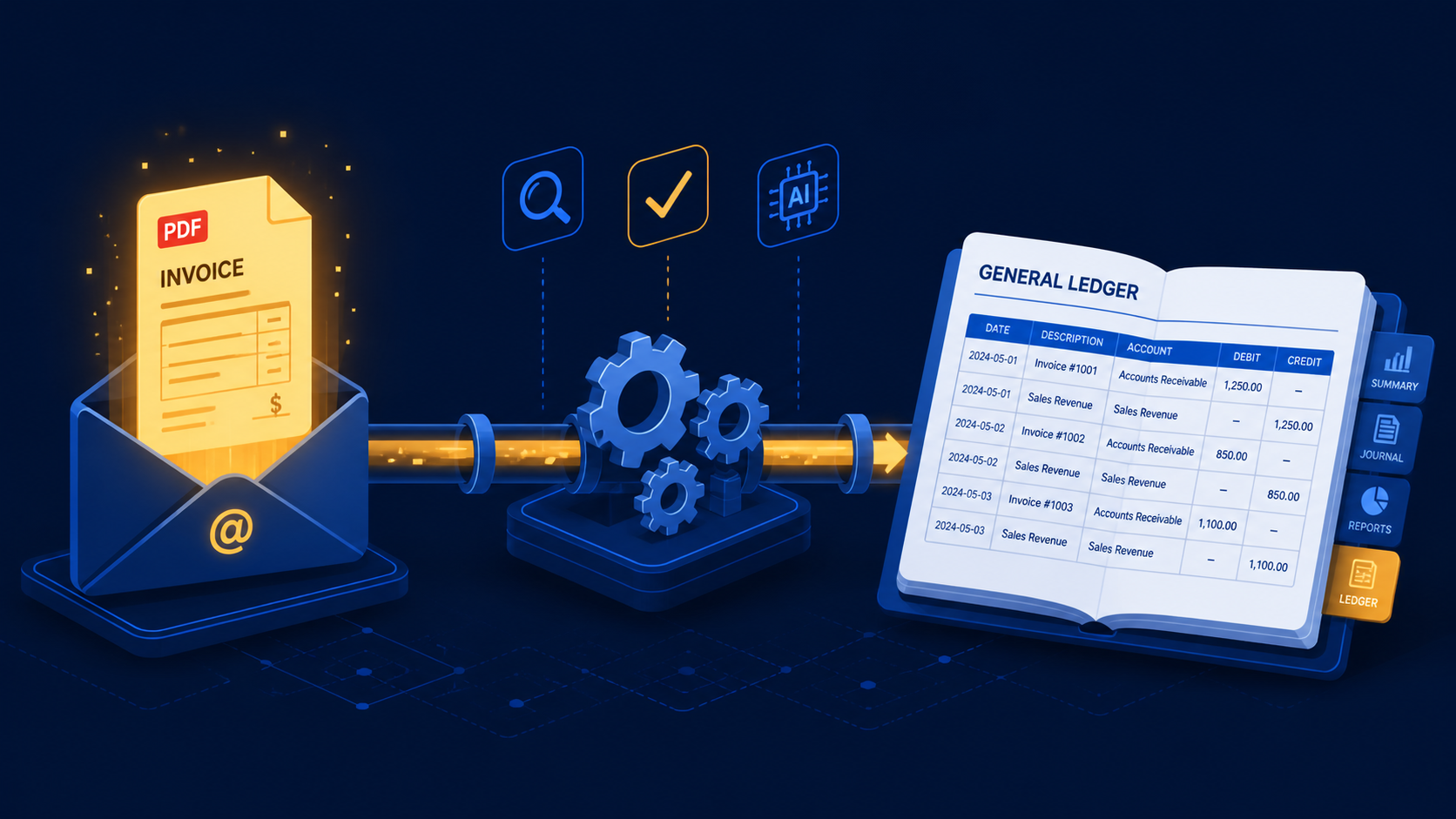
A three-stage n8n workflow that extracts supplier invoices from Gmail with Claude and books purchase mutations directly into e-Boekhouden.
May 1, 2026
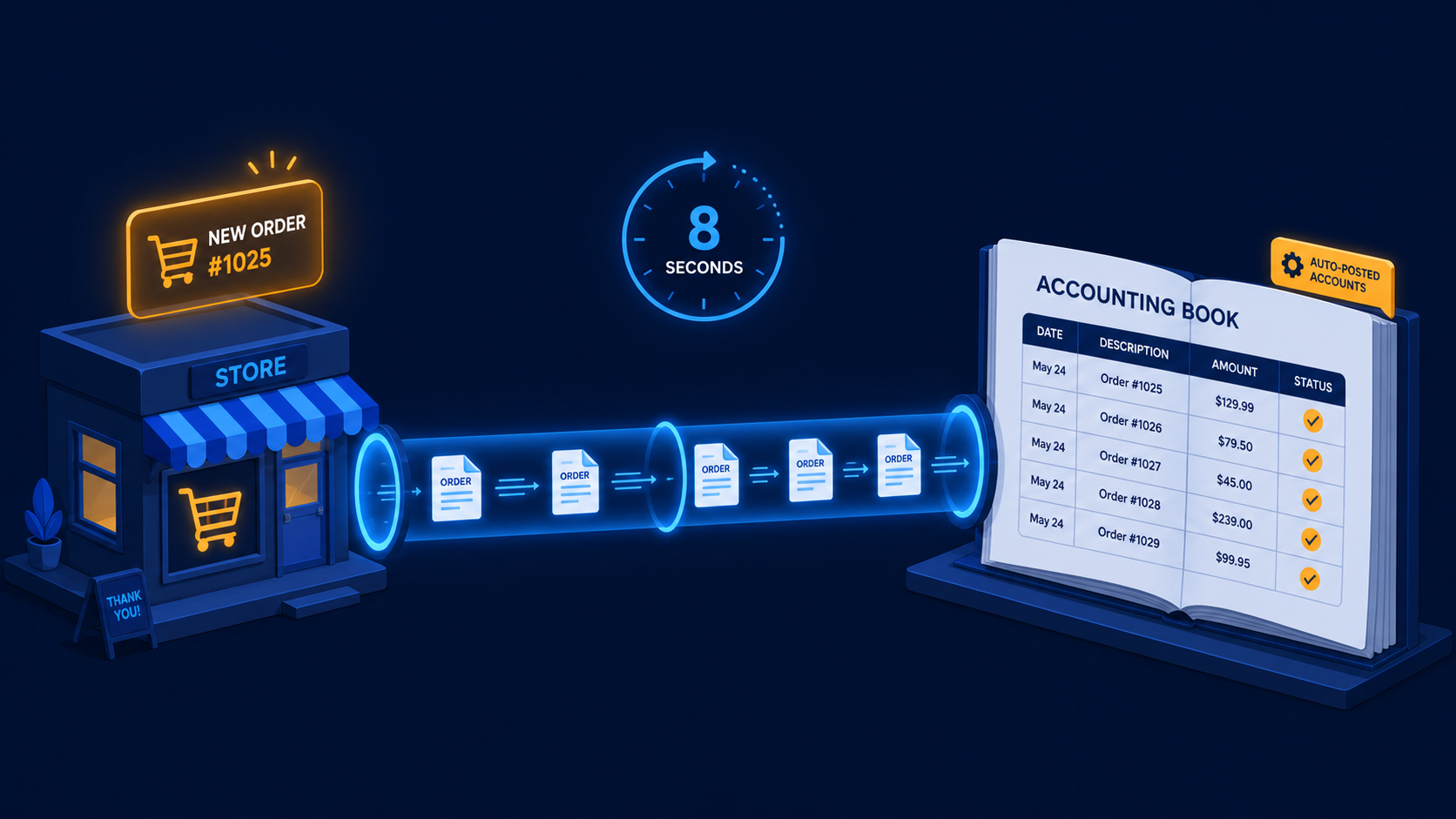
A two-workflow n8n system that turns paid WooCommerce orders and refunds into Moneybird invoices, payments, and credit notes automatically.
If you have a manual workflow between tools, I can help map the logic, design the system, and automate it in a way your team can actually use.
